
AI Voice Studio with Konpro API
Advanced Voice Synthesis Technology
Welcome to AI Voice Studio!
Create natural-sounding voices with AI-powered voice synthesis and customization tools for your applications. Our AI Voice Studio API provides advanced voice generation, cloning, and customization capabilities that bring your applications to life with human-like speech.
Voice Library Overview
Accessing the AI Voice Library
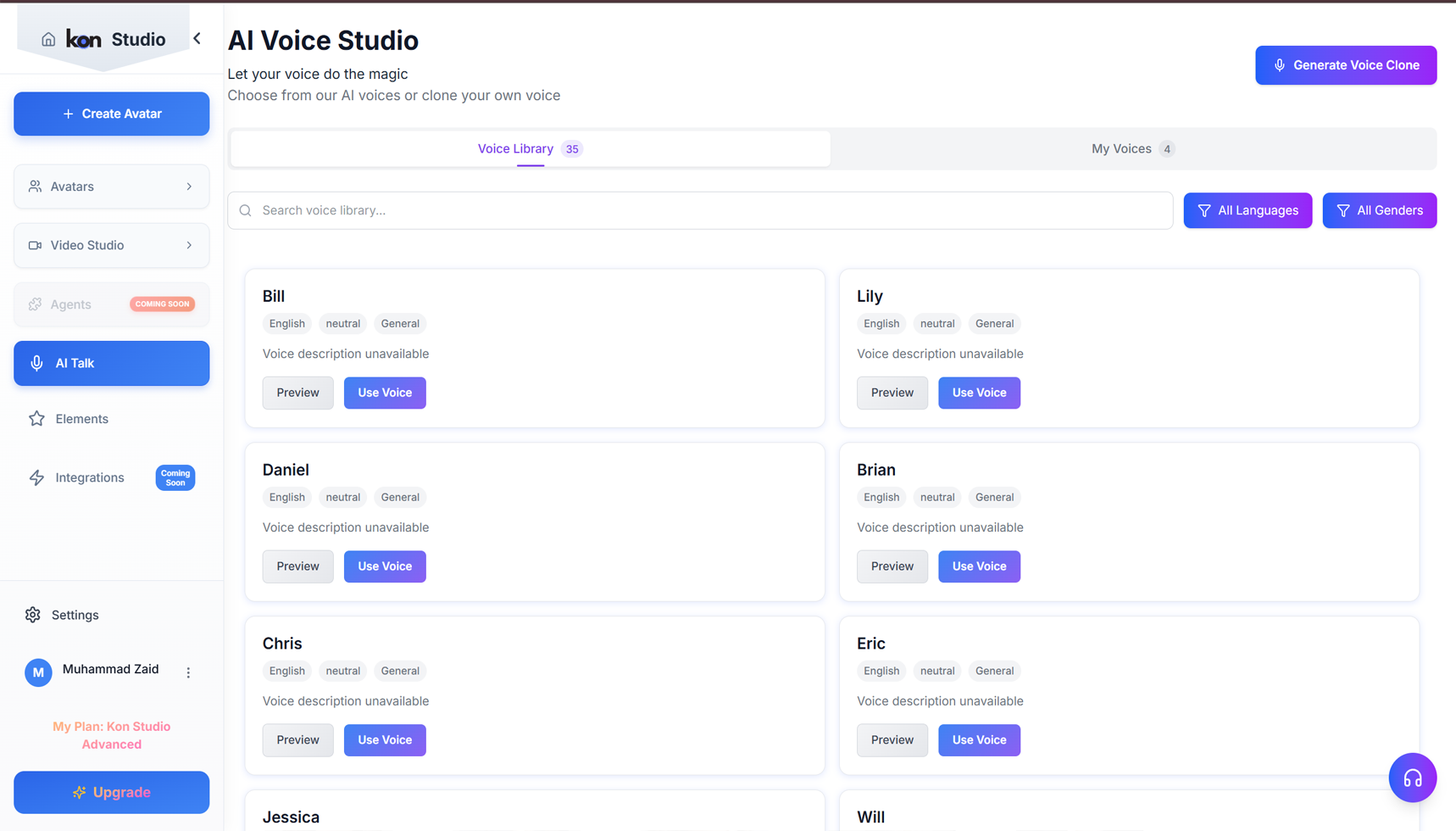
The AI Voice Studio provides access to a library of 35 pre-configured AI voices. The Voice Library tab displays available voices in a grid layout, with each voice card showing the voice name (e.g., Bill, Lily, Daniel), language (English), tone (neutral), and use case (General). Users can preview any voice before selection or click "Use Voice" to apply it to their project. Filter options for language and gender are available in the top-right corner, and a search bar allows quick voice discovery.
Generating a Voice Clone
Creating Custom Voice Clones
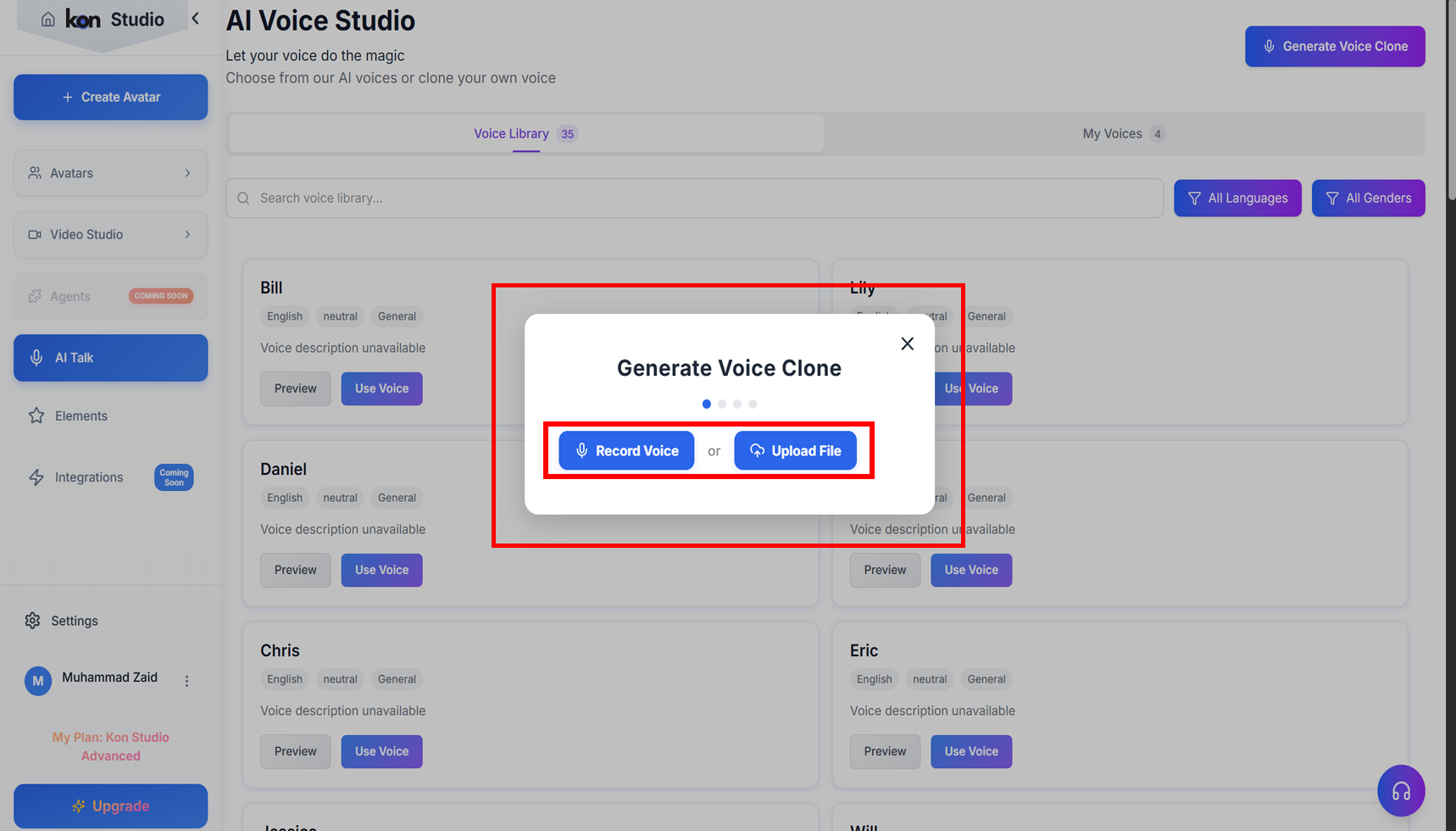
To generate a custom voice clone, click the "Generate Voice Clone" button in the top-right corner. A modal dialog will appear offering two methods for voice cloning: "Record Voice" allows you to record audio directly in the browser, while "Upload File" enables you to upload a pre-recorded audio file. Progress indicators at the top of the modal guide you through the multi-step cloning process.
Filtering by Language
Using the Language Filter
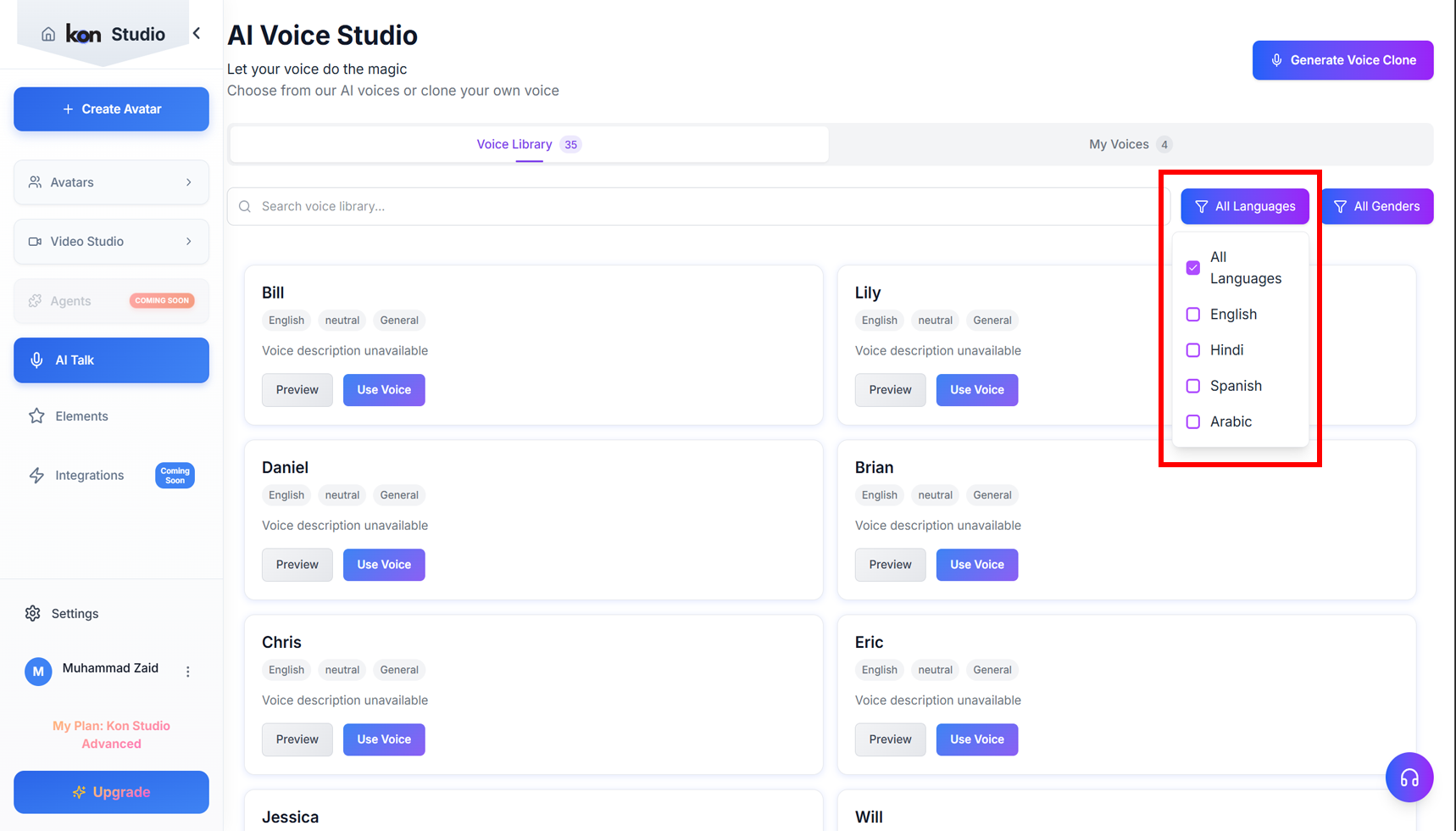
Click the "All Languages" dropdown button to filter voices by language. The available languages include English, Hindi, Spanish, and Arabic. Select "All Languages" to view the complete library, or choose a specific language to display only voices available in that language. This filter helps users quickly locate voices suitable for their target language requirements.
Filtering by Gender
Using the Gender Filter
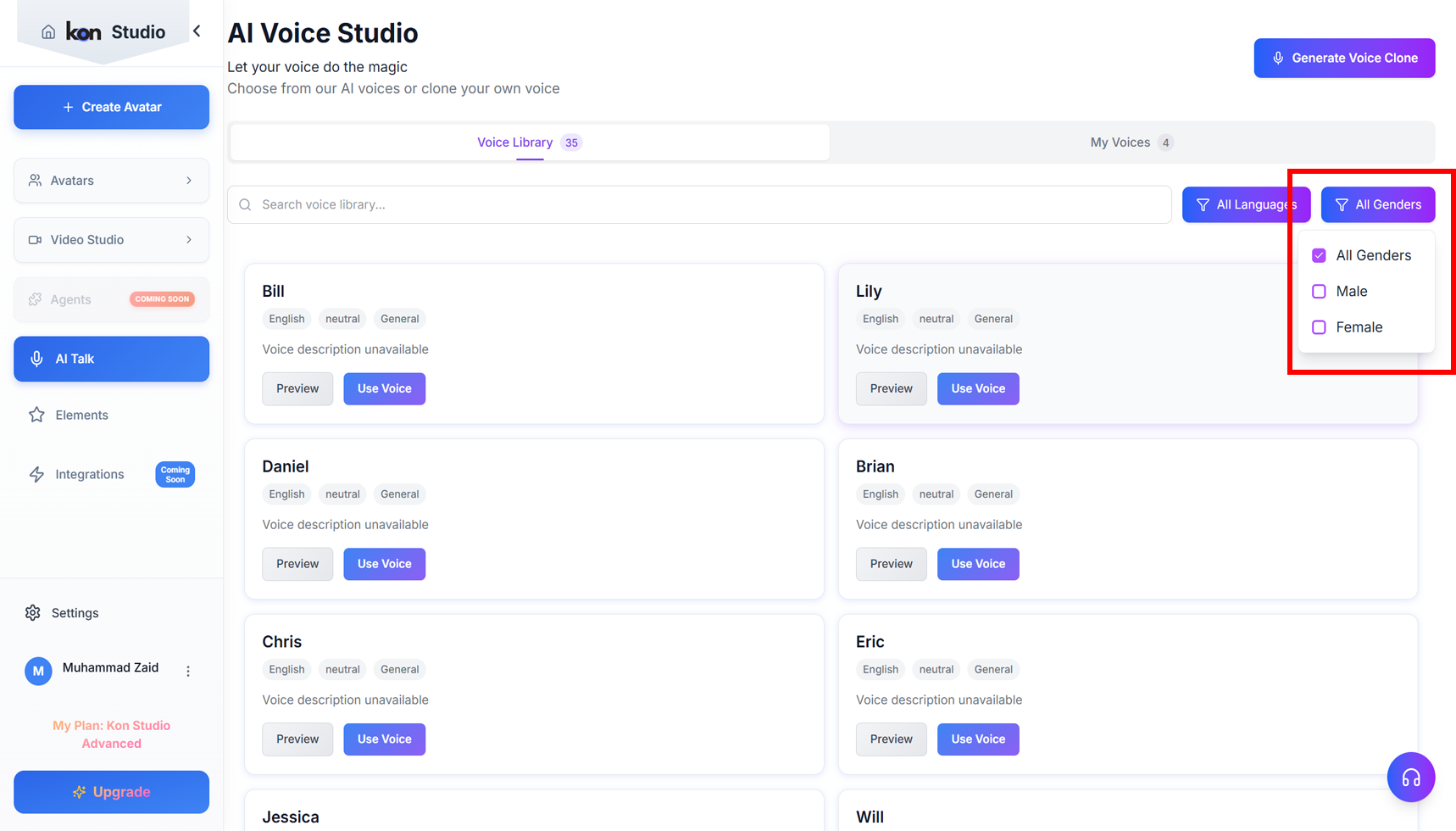
Click the "All Genders" dropdown button to filter voices by gender. Available options include "All Genders" (default view), "Male," and "Female." Selecting a specific gender will display only voices matching that gender profile, streamlining the voice selection process when you have specific character or presentation requirements for your project.
Selecting a Voice from the Library
Voice Card Selection Interface
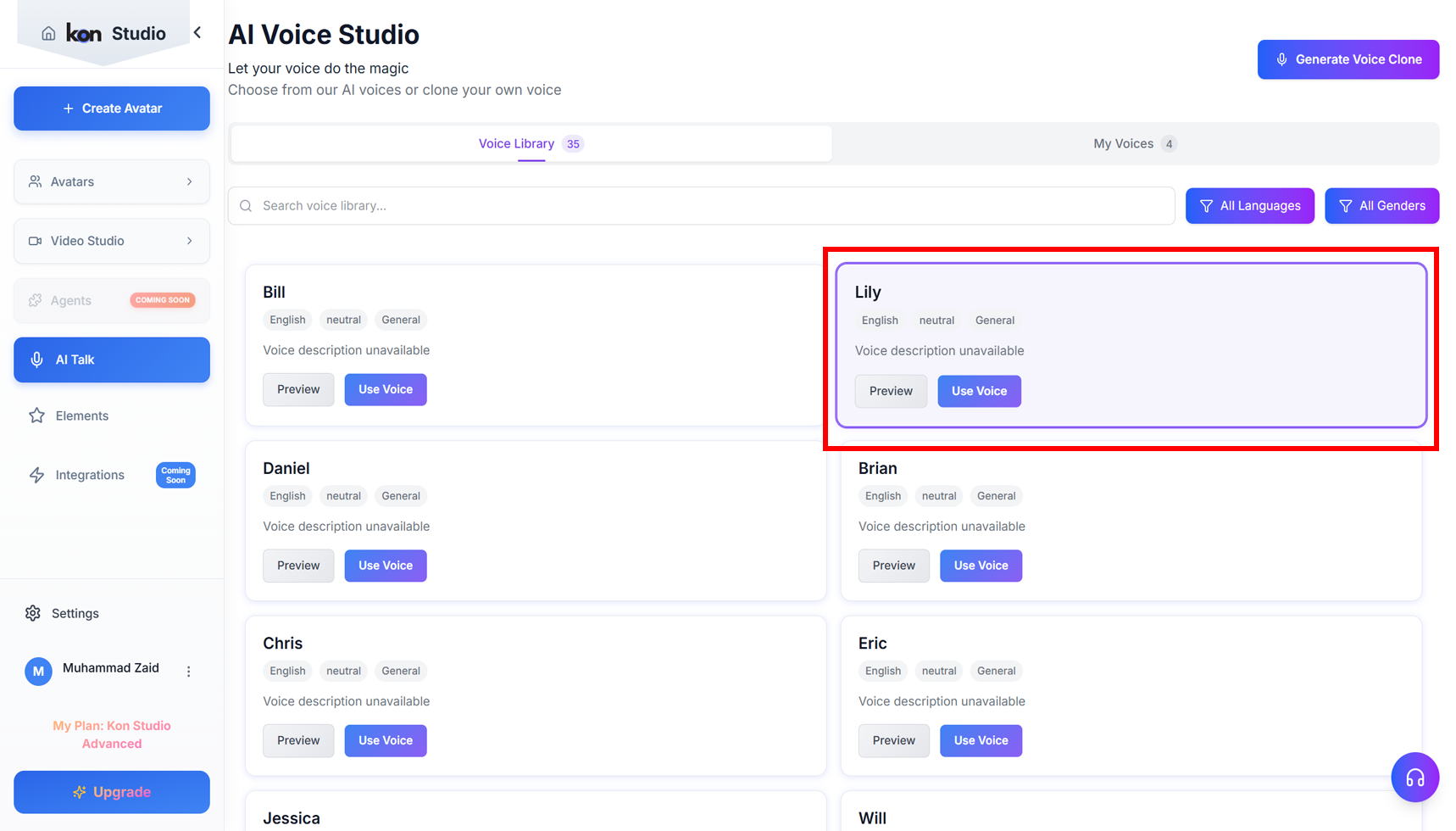
Each voice in the library is displayed as a card with relevant information including the voice name, language, tone, and category. The highlighted voice card (shown with a purple border) indicates the currently selected voice. Users can interact with two buttons on each card: "Preview" to listen to a sample of the voice, and "Use Voice" to select and apply that voice to their project. The card layout makes it easy to compare different voices and their characteristics before making a selection.
Using a Voice for Synthesis
Initiating Voice Synthesis
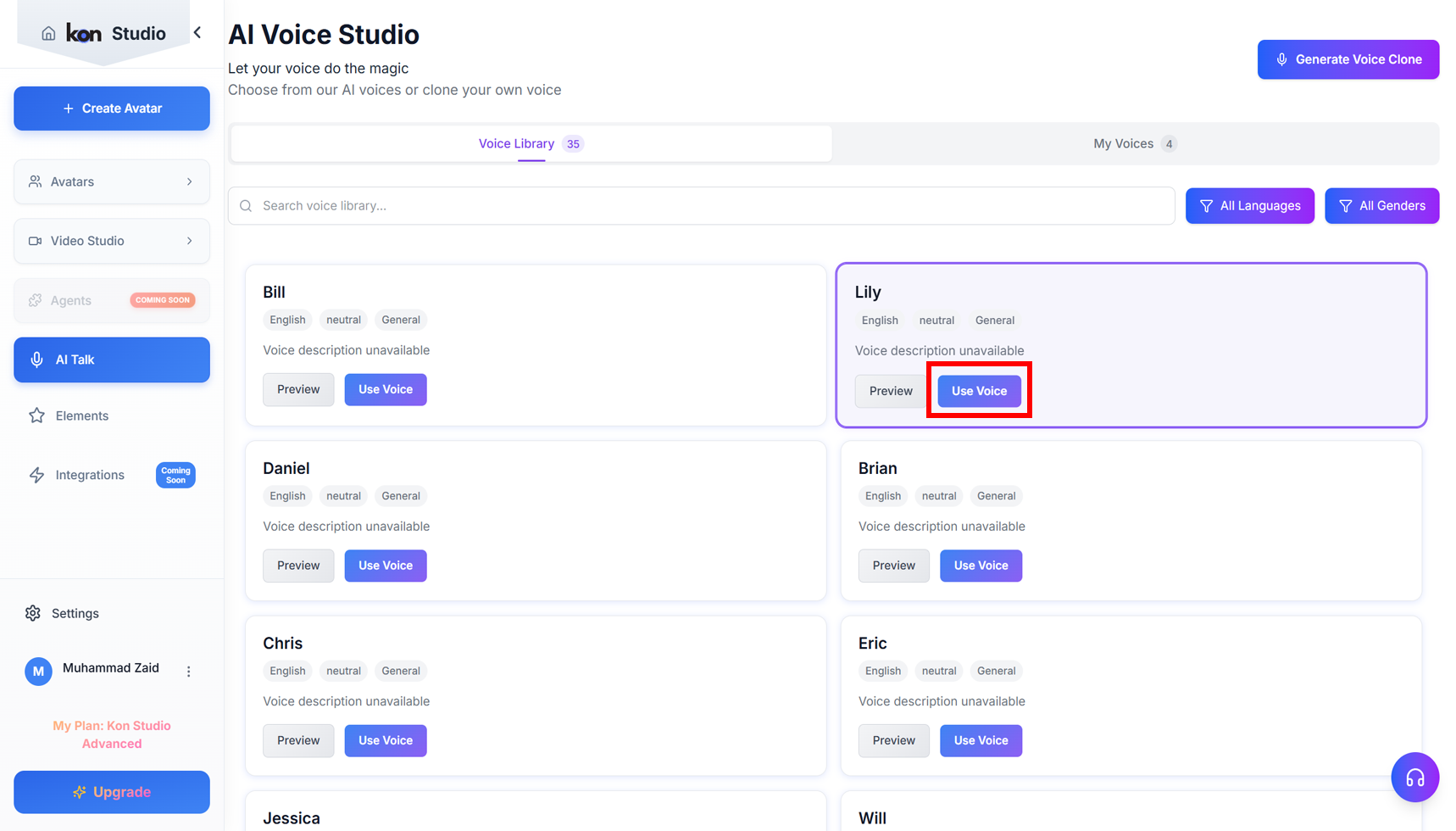
When you click the "Use Voice" button on any voice card, the system prepares to use that voice for text-to-speech synthesis. The selected voice card remains highlighted with a purple border to indicate it's active. This action opens the synthesis interface where you can input text to be converted to speech using the selected voice's characteristics, maintaining consistency with the chosen language, tone, and style parameters.
Text Input and Synthesis Controls
Configuring Voice Synthesis Parameters
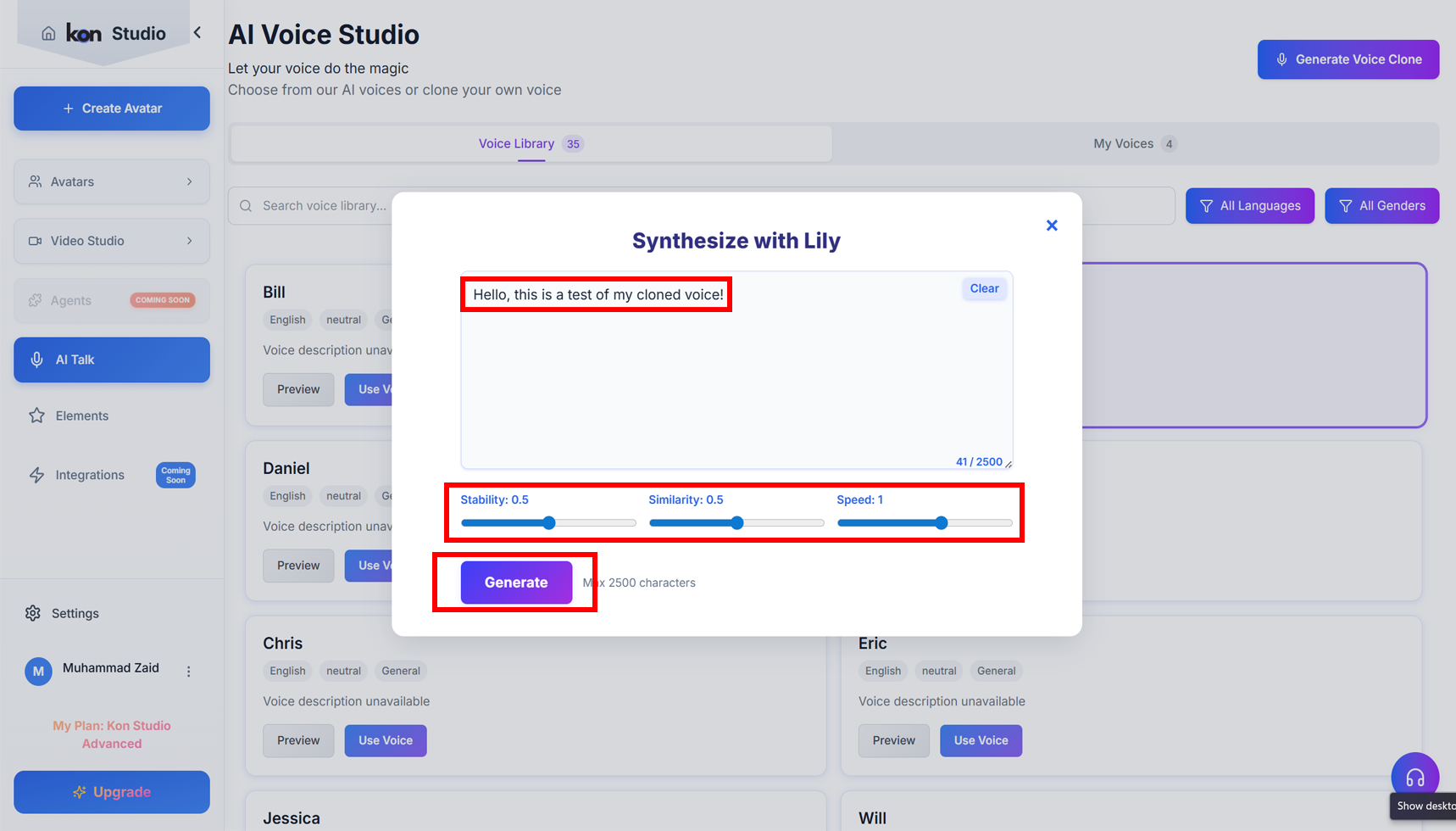
The "Synthesize with Lily" modal provides a text input field where you can enter up to 2,500 characters for voice synthesis (current count shown as 41/2500). The interface includes three adjustable parameters: Stability (0.5) controls voice consistency, Similarity (0.5) determines how closely the output matches the original voice characteristics, and Speed (1) adjusts the playback rate. After entering your text and adjusting these sliders to your preference, click the "Generate" button to create the audio output.
Audio Preview and Download Options
Previewing and Saving Generated Audio
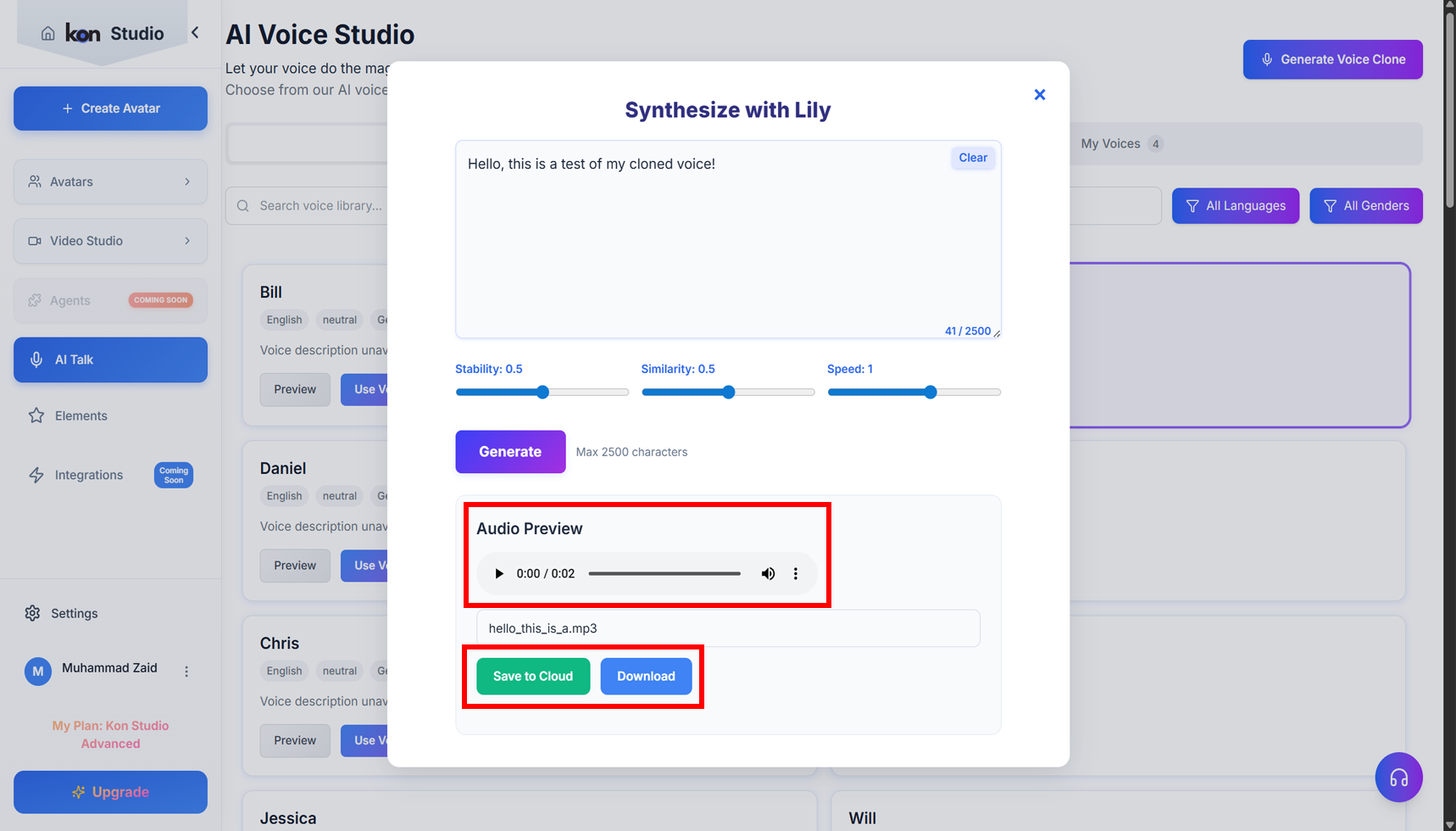
After generation completes, an "Audio Preview" player appears displaying the generated audio file (e.g., "hello_this_is_a.mp3"). The player includes standard playback controls showing duration (0:00 / 0:02), play/pause, volume control, and additional options. Below the player, two action buttons are available: "Save to Cloud" stores the audio file in your account's cloud storage for future access, while "Download" saves the audio file directly to your local device.
Key Features & Advice
- Generate natural-sounding voices with AI-powered synthesis technology.
- Clone existing voices from audio samples with high accuracy and quality.
- Customize voice characteristics including speed, pitch, emotion, and emphasis.
- Support for multiple languages and accents for global applications.
- Batch processing capabilities for efficient voice generation at scale.
- Real-time voice generation with low latency for interactive applications.
- High-quality audio output in various formats (MP3, WAV, AAC).
- For even more control, refer to Konpro's advanced endpoints for voice management and customization.
- Explore further to unlock the full potential of Konpro for AI voice synthesis!