
Replace Text/Voice in Template
Modify script text and voice in templates using the API
Welcome to Text/Voice Replacement!
In this guide, we will learn how to replace script text and voice within a template and generate a video. The Template API allows you to dynamically modify text and voice elements to create customized videos that suit your specific needs.
Text and Voice Properties
When replacing text and voice in templates, you can use the following properties to customize the content:
Text Properties:
- content: Text content.
Voice Properties:
- voice_id: Supports any ID returned from
/v1/voices.
Creating Template through the Interface
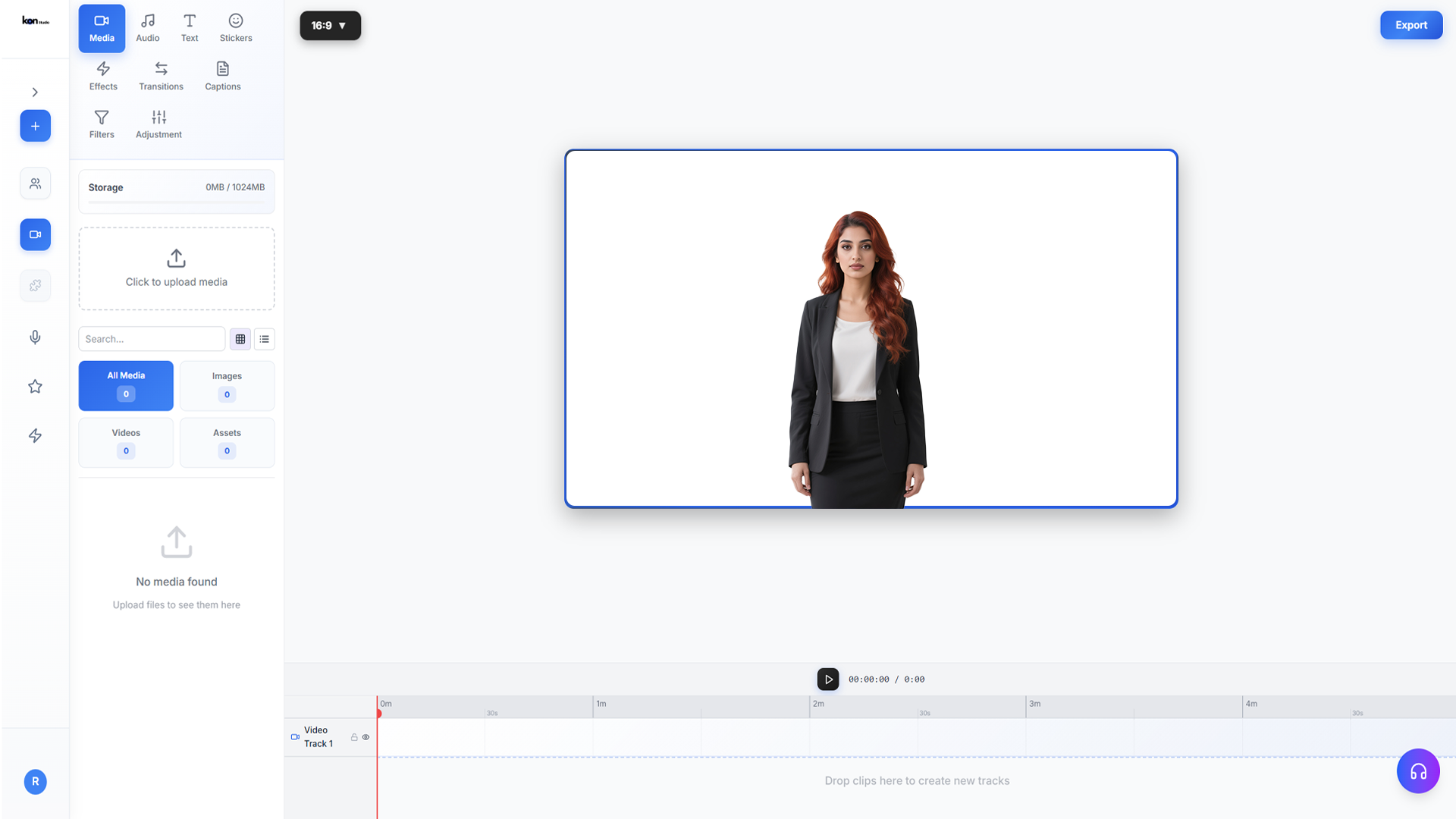
To create templates, visit the Template page and click on "Create Template". Under the Script tab you can create a new script section.
Variable Assignment
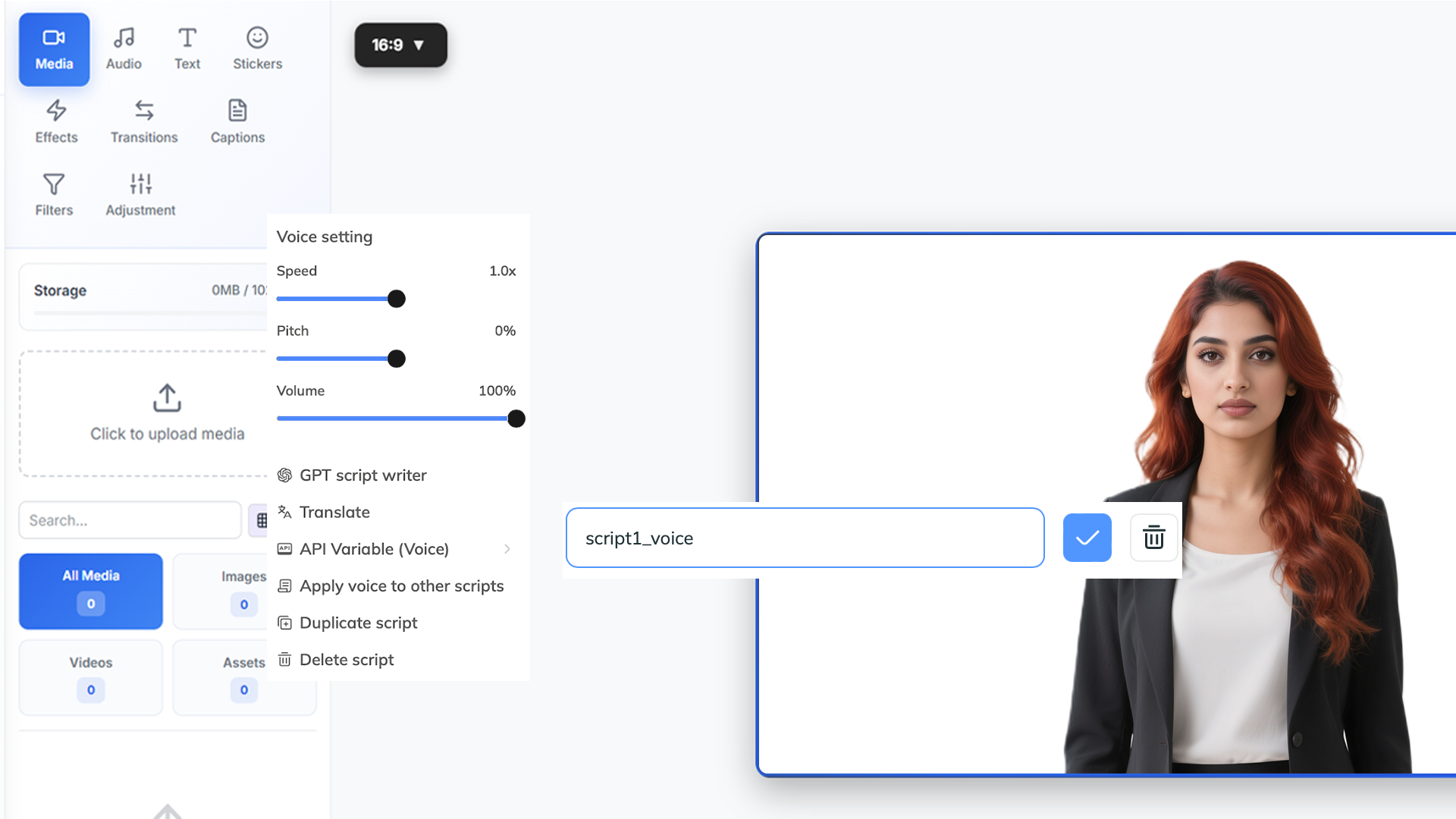
As you can see we have 1 script in our scene, we are going to change script with the variable, here is how we can assign variable.
Audio Script
Regarding the voice of the script, you can assign a variable to the voice using the "API Variable (Voice)" menu. The current voice for script_en is Tony (American - English) in this guide we will replace it with Fable (Multilingual).
Step 1: Get a List of Your Templates
Using the following API request you will get a list of your templates that you have created in the interface, obtain your template_id from here.
curl --location 'https://api.konpro.ai/v1/templates' \
     --header 'accept: application/json' \
     --header 'x-api-key: <your-api-key>'
Step 2: Retrieve Template Elements
To retrieve template elements, use this API request. Get the variable you want to change from here.
curl --location 'https://api.konpro.ai/v1/template/<template_id>' \
     --header 'accept: application/json' \
     --header 'x-api-key: <your-api-key>'
Voices
For the target voice_id you can choose any id returned from the /v1/voices endpoint. In this guide we will utilize Fable (Multilingual).
{
  "voice_id": "8b92884579014f8e8147836bbd0c13ca",
  "language": "Multilingual",
  "gender": "male",
  "name": "Fable",
  "preview_audio": "https://example.com/voice_preview.wav",
  "support_pause": false
}
Step 3: Modify Template Elements and Generate Video
To change template elements and generate videos, you will need to submit an API request as follows. In the request body, specify the elements you want to modify by providing the appropriate object within the variables section.
curl --location 'https://api.konpro.ai/v1/template/<template_id>/generate' \
     --header 'x-api-key: <your-api-key>' \
     --header 'Content-Type: application/json' \
     --data '{
  "caption": false,
  "title": "New Video",
  "variables": {
    "script_en": {
      "name": "script_en",
      "type": "text",
      "properties": {
        "content": "Hey there, how are you today?"
      }
    },
    "script1_voice": {
      "name": "script1_voice",
      "type": "voice",
      "properties": {
        "voice_id": "8b92884579014f8e8147836bbd0c13ca"
      }
    }
  }
}'
You will receive a video_id after your request. To check the video's status and retrieve further details, you can use the video_status API endpoint.
Template Scene Guidelines
There are certain guidelines to follow when using your template in the API. The new AI Studio allows your script to span multiple scenes. While users can save their templates as desired, to use the template in the API, scripts must be contained within a scene, or scenes must be contained within a script.
Important
Failure to follow these guidelines will result in an "End of scene 1 does not align with script" error.
Conclusion
In this guide, we've walked you through the process of replacing voice and script text within a template video using the Template API. By following the steps outlined here, you can seamlessly modify template elements to create customized videos that suit your specific needs.